
Picshiner - AI Photo Editor
AdoreApps MediaArt & Design
3.182.00 Reviews
- Version
- 1.0.117
- Installs
- 10.00M
- Age Rating
- Everyone
Screenshots


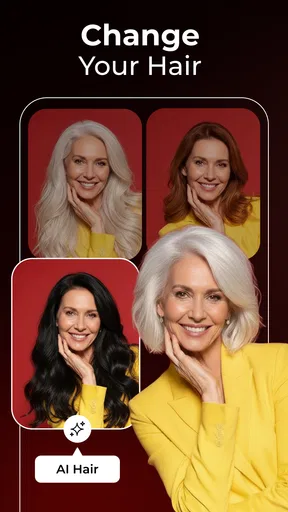

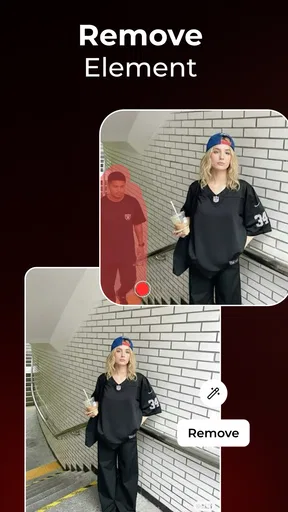


Our Review of Picshiner - AI Photo Editor
 Analysis by Appyee
Picshiner - AI Photo Editor is the kind of app I open when a photo is almost usable but needs a little help before I share it. It sits in the art and design category, focusing on AI-assisted editing, enhancement, restoration, and image transformations rather than trying to replace a full desktop studio. After spending time with it, my impression is that it is most useful as a quick repair-and-improve tool: convenient for ordinary pictures, less convincing when I expect precise professional control.
The app is free to install and is suitable for everyone, although optional purchases range from $2.99 to $43.99 per item. It comes from AdoreApps Media and has attracted over 10 million installs, so it is clearly aimed at a broad audience rather than only experienced editors. Its average rating is 3.1 from around 33 thousand ratings, which matches my overall feeling: there is a useful idea here, but the experience can be uneven depending on the image and how much editing you want to do.
How Picshiner feels in everyday photo editing
When I think about everyday photo editing, Picshiner makes the most sense as a quick first stop for pictures that need a modest rescue, not as a place to manage every stage of a serious project. I’d use it to test whether an automated improvement helps, then compare the result with the untouched image before deciding what to keep. That practical habit also leads to the next question: how much control do I actually want over the edit?
Quick improvements are the app’s strongest case
My favorite way to use Picshiner is with a photo that has a clear problem but does not deserve a long editing session. A slightly soft family picture, an old scan with visible damage, or a dim image from a night out can all benefit from an automated first pass. Instead of manually adjusting several sliders, I can start with the app’s AI-oriented tools and then decide whether the result is good enough to keep.
That workflow matters because many phone editors still make the user choose between simple filters and detailed manual controls. Picshiner occupies the space between them. It tries to make a meaningful change without requiring me to understand sharpening, noise reduction, color balance, or restoration techniques. Its real appeal is not unlimited creative control; it is reducing the number of decisions needed to rescue an ordinary image.
A realistic example would be preparing a picture for a family chat. I might have a group photo where faces are recognizable but the image looks dull and a little soft. I would first preserve the original, apply an enhancement, inspect faces and fine details at a closer view, and only then save or share the result. That last inspection is important because AI enhancement can make a picture look cleaner at a glance while producing strange edges or overly smooth skin in smaller areas.
Restoration needs a careful eye
The restoration angle is especially interesting for older photographs. Picshiner can be worth trying when an image has fading, mild damage, or a general lack of clarity. I would not treat the result as a historical reconstruction, though. When software restores a face or fills in missing detail, the output may look plausible without being faithful to what was really present.
For sentimental photos, I recommend keeping two versions: the untouched scan and the enhanced copy. This is a small habit, but it prevents an AI-generated interpretation from becoming the only record. It also lets me compare whether the app has genuinely recovered detail or simply increased contrast and sharpness. In my experience, that distinction is easy to miss when viewing a result on a small phone screen.
Picshiner is therefore better for making an old image more presentable than for archival work. If I needed exact retouching, controlled restoration, or a print-ready result, I would move to a more traditional editor where every correction can be reviewed and adjusted manually.
Transformations are best used selectively
The transformation side makes the app more playful. It can be useful when I want to experiment with a personal picture rather than preserve it accurately. A portrait can become a creative variation, and an ordinary image can be turned into something better suited to a social post or a visual project. The key is to treat these results as interpretations, not objective improvements.
I found that selective use produces better results than repeatedly transforming the same image. Each additional change can move the picture farther from the original, and it becomes harder to tell whether a strange detail came from the source photo or from the processing. My practical approach is to return to the original for every new experiment instead of editing an already transformed copy.
What happens during heavier use
Performance expectations depend heavily on the task. A basic adjustment should feel less demanding than an AI enhancement or restoration pass because those operations have more image information to analyze. On a newer phone, I would expect ordinary edits to be comfortable, while more ambitious processing may take longer and use more battery than a simple filter-based editor.
I would avoid starting several demanding edits while the phone is already busy with other work. For example, if I am exporting photos while downloading large files or recording video, the overall experience may feel less responsive even if Picshiner itself is functioning normally. Closing unnecessary apps, keeping the source image at a sensible size, and processing one picture at a time are simple ways to make the session more predictable.
There is also a practical difference between preview speed and final processing. A preview can look ready before the final result has completed all its work. I prefer to wait for the finished image and inspect it at full size, especially when the goal is restoration or face enhancement. A quick preview is useful for choosing a direction, but it should not be treated as proof that the saved image will look identical.
Resource demands and storage habits
Photo editing naturally involves temporary image data, and repeated exports can leave several versions in the gallery. I recommend using clear filenames or a separate album when testing different results. This is particularly helpful with Picshiner because comparing the original, an enhanced version, and a transformed version is more informative than relying on memory.
Large photos are also a sensible place to be cautious. If a picture comes directly from a modern phone camera, I would first test the workflow on a copy or a reduced version. That lets me judge the style of the result before committing more time to a heavier operation. Once I like the direction, I can work with the better-quality source when appropriate.
This approach is not about chasing speed alone. It reduces wasted processing and makes mistakes easier to recover from. If an enhancement introduces halos around hair or makes a background look artificial, I can discard that copy without losing the original image.
Stability, saving, and recovery
My reliability standard for an editor is simple: it should preserve the source, make the current result understandable, and give me a clear way to recover when an edit is not right. Picshiner works best when I follow that discipline myself. I save meaningful results as separate copies and avoid treating an automated change as irreversible.
Before beginning a longer edit, I make sure the original is already safe in my gallery or backup routine. If an operation takes longer than expected or the app needs to be reopened, that habit protects the important image. It also helps when I want to compare several approaches rather than accepting the first automated result.
I would not describe an AI editor as completely predictable. Different images can react very differently to the same kind of enhancement: a landscape may gain useful definition, while a face can become too smooth or a patterned object can develop odd textures. That variation is a limitation of the editing approach, not necessarily a sign that the app has failed. The right response is to inspect, compare, and undo by returning to the untouched source.
Device limits worth considering
Picshiner supports devices running Android 7.0 or later, which gives it a wide potential reach. Still, operating-system compatibility does not guarantee the same experience on every phone. Older hardware may take longer with AI-heavy processing, and devices with limited free storage can make any photo workflow less comfortable.
If I were installing it on an older Android phone, I would begin with one modest image rather than a large batch. I would also keep the phone charged for longer sessions and avoid judging the app from a single demanding restoration attempt. The important question is whether the everyday images I actually edit are handled comfortably, not whether every possible source file processes instantly.
On a newer device, the main constraint may be attention rather than raw capability. Automated tools can make it tempting to accept the first attractive result. A larger screen or a quick zoom check helps reveal details that look fine in a thumbnail but fail at normal viewing size. This is one reason I see Picshiner as a fast assistant, not a replacement for careful visual judgment.
Where it fits beside familiar alternatives
Compared with a conventional mobile editor, Picshiner is more appealing when I want the app to do the technical thinking. Traditional editors are usually better when I need a precise crop, a controlled color correction, a carefully masked adjustment, or a repeatable workflow across many images. They may require more effort, but that effort buys predictability.
Compared with a simple filter app, Picshiner offers a more purposeful route for damaged, soft, or low-quality photos. A filter changes the mood; an enhancement or restoration attempt addresses the image itself. That makes Picshiner more useful for rescue jobs, while a filter-focused app may be faster for casual styling.
Compared with a professional desktop editor, the difference is even clearer. Picshiner is easier to approach and better suited to quick phone-based decisions, but it does not replace detailed layer work, exact selections, or a carefully managed production process. I would use it to prepare an image quickly, then move elsewhere if the picture had commercial, archival, or highly creative importance.
Who should use it and who should skip it
I think Picshiner is a good match for people who regularly say, “This photo is nearly good, but not quite.” It suits casual photographers, families digitizing older pictures, students preparing visual material, and anyone who wants an automated starting point. The free entry point makes it easy to test without committing immediately, though the optional purchases mean I would review any upgrade screen carefully before paying.
It is less suitable for someone who wants complete manual control from the beginning. If I need exact retouching, consistent batch processing, transparent adjustments, or dependable color accuracy, I would choose a more established manual editor instead. I would also skip it for sensitive images unless I am comfortable reviewing the app’s handling choices and keeping the original safely stored elsewhere.
The age rating of Everyone makes the app approachable for a broad audience, but that does not remove the need for common sense when editing personal pictures. I would be particularly careful before sharing a transformed portrait or a restored family image, because an attractive result is not always an accurate one.
My practical workflow for better results
I get more consistent outcomes by following a short routine. First, I duplicate the original. Second, I choose the least aggressive enhancement that addresses the problem. Third, I inspect faces, text, hair, and repeating patterns rather than only looking at the whole image. Finally, I compare the result with the source before deciding whether to share it.
For a faded photograph, I would test restoration on a cropped section first if the app allows that kind of workflow, especially around faces or damaged edges. For a blurry snapshot, I would avoid adding extra effects until I know whether the basic enhancement has helped. For a creative transformation, I would keep the original visible during comparison so the new version remains an intentional style choice instead of an accidental replacement.
These steps also answer a common practical concern: can Picshiner replace a backup or an original file? No editing app should be treated as the only home for an important photograph. I always keep the source separately, because recovery is much easier when I can start over rather than trying to reverse several automated changes.
Version, access, and overall value
The current version is 1.0.117, and the app was released on February 2, 2023. Those details place it in a relatively modern part of the Android app landscape while still covering a broad range of supported devices. I would keep it updated through the normal app store process, particularly if an editing workflow behaves inconsistently after a system update.
The free installation is a meaningful advantage for testing. I can find out whether its enhancement style suits my photos before considering an in-app purchase. At the same time, the wide purchase range makes it important to distinguish between casually trying the tools and building a regular paid workflow. I would only spend money after checking that the results are consistently better for the specific images I care about.
Its rating of 3.1 suggests that expectations should remain measured rather than assuming every automatic edit will be excellent. I see that as a reason to use the app selectively, not as an automatic rejection. The experience can be worthwhile when the problem is simple and the desired result is “better for sharing,” but less satisfying when the image demands precision.
Final performance verdict
Picshiner is a convenient AI photo editor with a clear everyday purpose: improve, restore, or creatively alter a picture without turning the process into a technical lesson. I like it most for one-off fixes, quick experiments, and photos that need a helpful first pass. Its strongest workflow is careful rather than careless—process one image, compare against the original, and inspect details before saving.
Speed and stability should be judged according to the job and the device. Simple edits are likely to be the comfortable part of the experience, while restoration and heavier transformations deserve more patience, storage awareness, and battery consideration. The app’s broad Android support is useful, but older phones may not feel as relaxed during demanding work.
My recommendation is to try Picshiner when convenience matters more than exact control. Keep it as a practical rescue tool, not as the only editor in your collection. If you want quick improvements on a phone and are willing to review AI-generated results with your own eyes, it can earn a place in your editing routine. If accuracy, repeatability, or professional-level control comes first, a traditional editor remains the better choice.
Verdict
Strengths of Picshiner - AI Photo Editor
- AI tools quickly enhance portraits and remove unwanted details.
- Simple interface makes basic edits accessible to beginners.
- Supports creative filters, effects, and artistic photo transformations.
- Useful for preparing images for social media and profile pictures.
- Previewing edits makes it easy to compare results before saving.
Limitations of Picshiner - AI Photo Editor
- Some advanced AI features may require a subscription or credits.
- Results can look artificial when edits are applied too strongly.
- Processing may take longer with high-resolution photos or busy effects.
- Privacy details should be checked before uploading personal images.
- Export options and image quality may vary by device or plan.
Other Releases by AdoreApps Media
View All
ArtPic: Photo & Video Editor
Art & Design4.5
Similar Picks in This Category
View All
Canva: AI Photo & Video Editor
Canva4.8

PENUP – Drawing-sharing SNS
Samsung Electronics Co., Ltd.4.5

Crafto
Kutumb App4.6

Sketchbook
Sketchbook4.1

ibis Paint X
ibis inc.4.5

Adobe Express: AI Photo, Video
Adobe4.6
Frequently Asked Questions
What is Picshiner - AI Photo Editor, and what can it do?
Picshiner - AI Photo Editor is designed to enhance and transform photos with artificial intelligence-powered editing tools. Depending on the available version, users may be able to improve image quality, retouch portraits, remove unwanted elements, apply creative effects, change backgrounds, and create stylized images. It is aimed at both casual users and creators who want quick results without using complex professional editing software.
Is Picshiner - AI Photo Editor free to download and use?
The application may be free to download, but some editing tools, premium effects, export options, or advanced AI features can require payment. Users should check the app’s current pricing, subscription terms, and trial conditions before starting a premium plan. It is also worth confirming whether edited images include watermarks or whether high-resolution downloads are limited to paying users.
Does Picshiner require an internet connection to edit photos?
Many AI photo-editing functions usually depend on cloud processing, so Picshiner may require an active internet connection for tasks such as background removal, image enhancement, face retouching, or AI-generated effects. Basic adjustments might work offline if supported, but availability can vary by version and device. A stable Wi-Fi or mobile data connection is recommended for faster processing and reliable results.
Are photos uploaded to Picshiner safe and private?
Before editing personal, sensitive, or private images, users should review Picshiner’s privacy policy and permission requests. AI features may upload photos to remote servers for processing, and the app may collect technical or usage information. Avoid submitting confidential documents or images of other people without permission, and check how long uploaded content is stored, whether it is used for training, and how deletion requests are handled.
What devices are compatible with Picshiner, and is it easy for beginners?
Picshiner is intended for mobile users, but compatibility depends on the operating system version, device hardware, and the specific release available through the Android or iOS store. AI processing can perform better on newer phones with sufficient storage and memory. The app is generally suited to beginners because its tools are built around presets and automated adjustments, although some features may take experimentation to use effectively.
